
· Caliber Dynamics · Guides · 3 min read
How to Download CDYN Custom GameGlass Shards
Step-by-step instructions for downloading and installing Caliber Dynamics custom GameGlass control panels for Star Citizen.
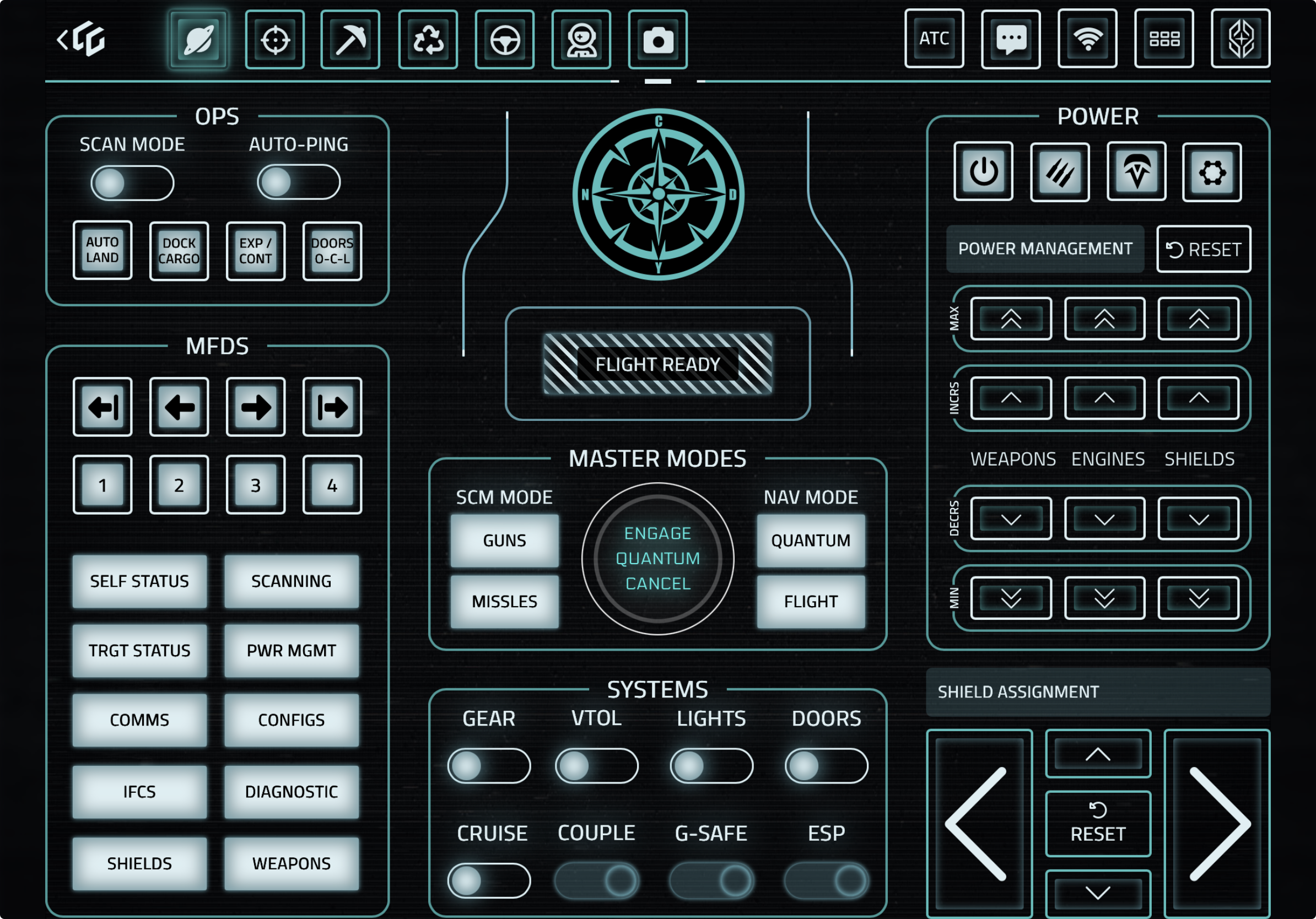
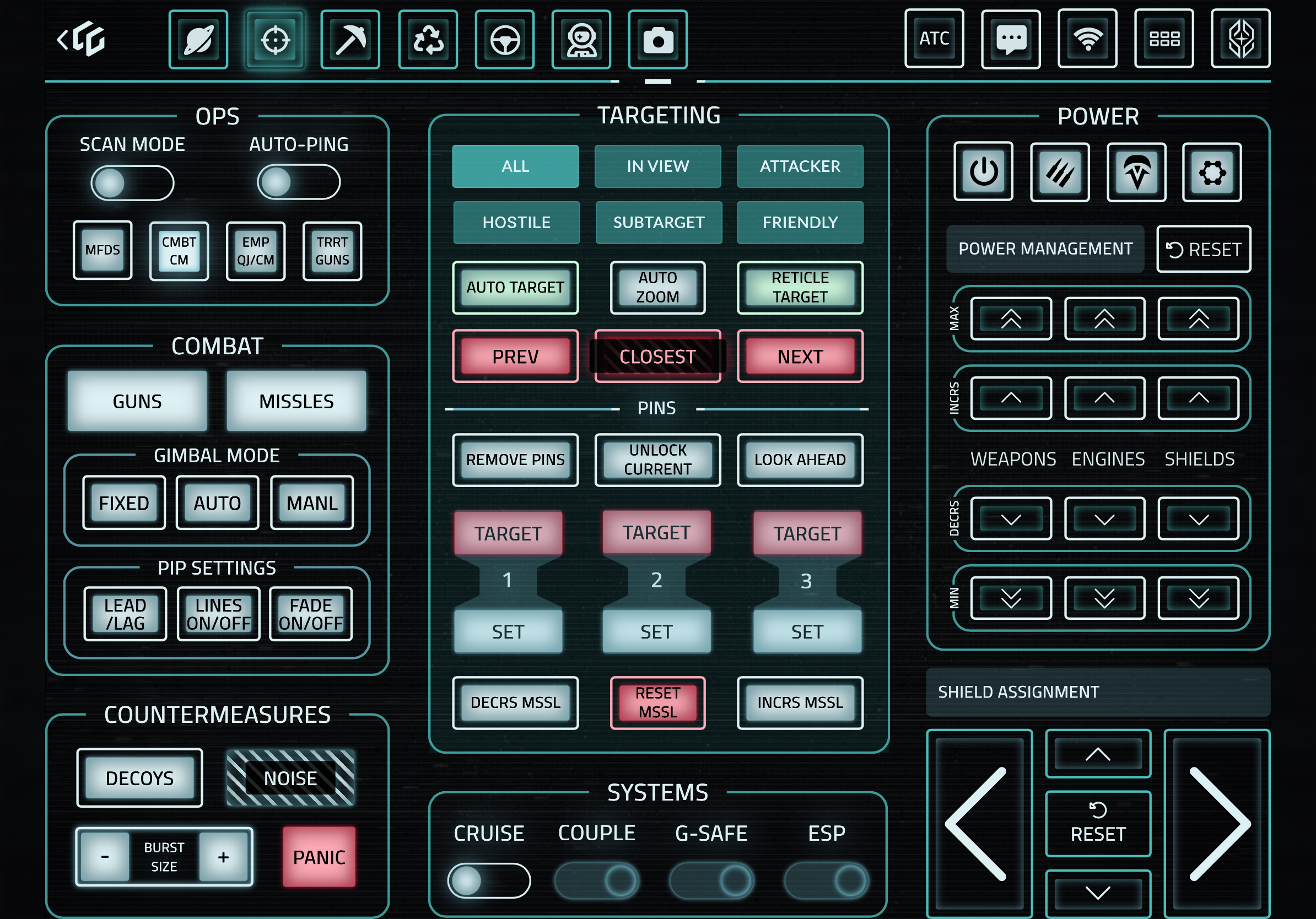
Caliber Dynamics has created a full set of custom GameGlass shards (control panels) designed specifically for our Star Citizen operations. Whether you are hauling cargo, mining ore, running combat missions, or just emoting at your friends, we have a shard for it.
This guide walks you through downloading, installing, and switching between our custom shards.
What You Need
- A GameGlass account (CDYN members save 10% with our partner link)
- The GameGlass app installed on your phone or tablet
- The GameGlass desktop companion installed on your PC
- Star Citizen installed and configured
If you have not set up GameGlass yet, check out our GameGlass overview guide first.
Step 1: Open the GameGlass App
Launch the GameGlass app on your phone or tablet. Make sure you are logged into your account.
Step 2: Navigate to the Community Library
From the main screen, tap the Library or Community section where you can browse and search for shared shards.
Step 3: Search for CDYN Shards
You can find our shards by searching for their shard codes. Here are all the CDYN custom shards:
| ██████ | ███████ | ████████████████████████ |
| ██████ | ███████ | ████████████████████████ |
| ██████ | ███████ | ████████████████████████ |
| ██████ | ███████ | ████████████████████████ |
To import a shard, enter the code in the search field and tap to download it.
Step 4: Add Shards to Your Profile
Once downloaded, each shard will appear in your personal library. You can add them to your active profile by:
- Going to your Profile or My Shards section
- Tapping Add Shard or the + button
- Selecting the CDYN shard you want to add
Repeat this for each shard you want available during gameplay.
Step 5: Connect to Your PC
- Launch the GameGlass desktop companion on your PC
- Make sure your phone/tablet and PC are on the same WiFi network
- The app should automatically detect and connect to your PC
- Launch Star Citizen
Step 6: Switch Between Shards During Gameplay
This is where the CDYN shard set really shines. During gameplay, you can swipe between shards to access different control panels depending on what you are doing:
- Taking off from a station? Use the Main shard for flight controls
- Entering combat? Swipe to the Combat shard for weapons and targeting
- Approaching an asteroid field? Switch to the Mining shard
- Found a wreck? Pull up the Salvage shard
- Landed and on foot? Use Ground or Emotes
Troubleshooting
Shards not appearing after download? Try refreshing your library or restarting the app.
Controls not triggering in-game? The CDYN shards are mapped to our custom keybinding layout. Download and import the CDYN keybinds into Star Citizen to make sure everything lines up:
Download CDYN Keybinding Layout (XML)
To import: copy the file to your StarCitizen\LIVE\USER\Client\0\Controls\Mappings folder, then select it in-game under Options > Keybindings > Control Profiles.
High latency or delayed inputs? Ensure both devices are on the same local WiFi network. GameGlass sends commands over local WiFi only, so a stable connection is important.
Questions?
If you run into any issues, reach out in our Discord. Fellow CDYN members and our coordinators can help you get set up.

Discussion